
Key Takeaways
- A plugin is not a problem simply because it exists. Audit what each plugin does, how it is maintained and what it costs the site on real pages.
- Do not deactivate plugins at random on the live website. Take a verified backup, use staging and test the functions and data that depend on each change.
- Prioritise unsupported software, known vulnerabilities, duplicate features, failed updates and plugins that handle sensitive or business-critical data.
- Measure database, server, browser and third-party effects separately. A slow page can be caused by one external request rather than the total plugin count.
- Finish with an owner, update policy, dependency record and repeatable test checklist so the site does not drift back into the same state.
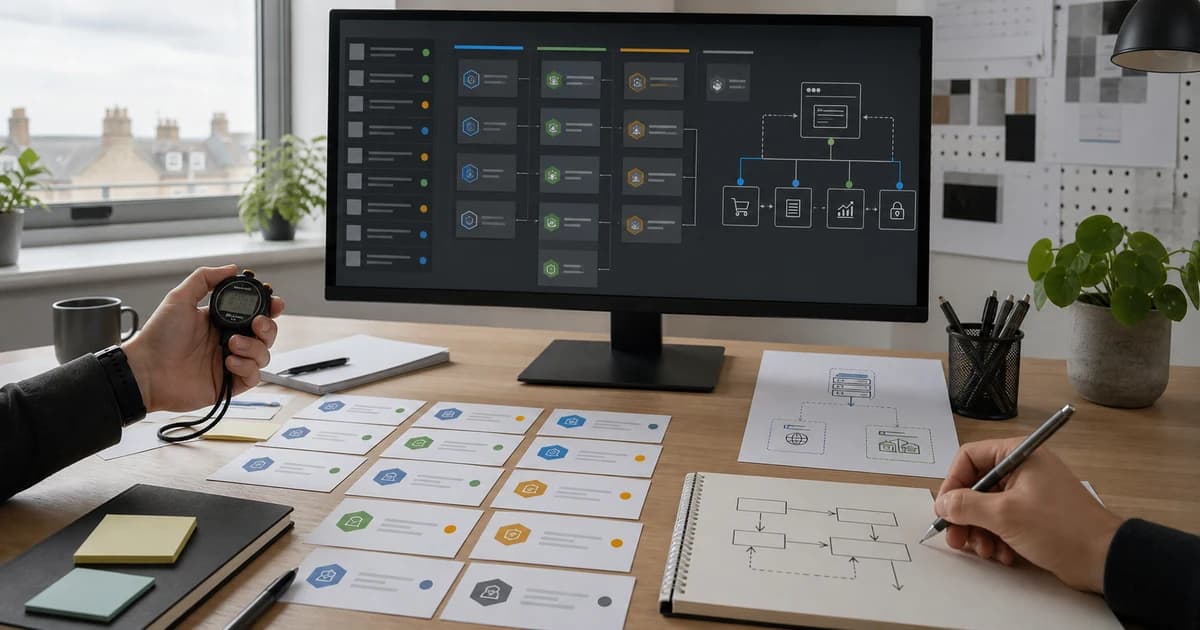
A WordPress plugin audit should answer four questions for every installed plugin: what job does it perform, is that job still needed, is the software trustworthy and maintained, and what effect does it have on the website? Counting plugins alone cannot answer any of them.
One complex ecommerce plugin may be essential and well engineered. A tiny abandoned add-on may create a serious risk. Ten focused plugins can perform better than one multipurpose package that loads unused code everywhere. The aim is not the lowest possible number. It is a small, understood and maintainable set of dependencies.
Start with a Safe Audit Environment
Before changing anything, confirm that the website has a current backup and that somebody has tested how it would be restored. A backup that has never been opened or restored is only an assumption.
Create a staging copy that is protected from public access and search indexing. Match the live PHP version, WordPress version, theme, plugins and important server settings closely enough for test results to be meaningful. Remove or mask personal customer data where a staging environment does not need it.
Record the current state:
- WordPress, PHP and database versions;
- active, inactive and must-use plugins;
- plugin versions, licences and update status;
- active theme and child theme;
- scheduled tasks and integrations;
- representative performance tests;
- known errors in logs and Site Health;
- forms, payments, bookings and other critical journeys.
WordPress's Site Health documentation describes checks for updates, PHP, maintenance and security. It is a useful starting point, but it does not replace a business-specific test. Site Health cannot know whether a quote reaches the sales team or a product sync produces correct stock.
If this preparation is unfamiliar, use a website audit and consultation before experimenting with the live installation.
Build a Plugin Inventory That Explains Purpose
Export or copy the full installed plugin list. Do not ignore inactive plugins or must-use plugins because both still need ownership and review.
Create columns for:
| Field | What to record |
|---|---|
| Purpose | The user or business need the plugin serves |
| Owner | The person who understands and approves it |
| Status | Active, inactive or must-use |
| Version | Installed and available version |
| Source | WordPress directory, vendor, agency or custom |
| Maintenance | Last meaningful update and support route |
| Data | Personal, payment, form or operational data handled |
| Dependencies | Theme, plugin, API or content that relies on it |
| Cost | Licence, usage and support renewal |
| Exit | What breaks or remains when it is removed |
Open the website and administrator area while filling this in. Plugin names often fail to explain their real role. An add-on called Custom Fields might power every service page. A snippets plugin may contain essential integration code. Never infer that something is safe to remove from its name alone.
A WordPress development review should turn this inventory into documentation the site owner can keep, not a private list that disappears with the developer.
Identify Immediate Security and Support Risks
Start with the issues that require prompt investigation:
- plugins with available security or maintenance updates;
- abandoned plugins that no longer support the current WordPress or PHP version;
- plugins removed or closed by their original directory or vendor;
- unlicensed or modified copies from an unknown source;
- custom plugins without source control, documentation or an owner;
- tools that allow file editing, code execution or broad administrator access;
- duplicate administrator accounts created for old suppliers;
- plugins that send sensitive data to an unclear third party;
- failed automatic updates or background tasks.
WordPress's official security guidance says the most important security step is to keep WordPress, installed plugins and themes up to date and to choose actively maintained software. Updates should still be controlled. Take a backup, read material release notes, test on staging and verify the live site afterwards.
The official plugin management guide also advises taking a current backup before updating plugins. Avoid applying a large backlog without a plan, because several simultaneous changes make a fault difficult to trace.
Do not assume that a WordPress-directory listing is a permanent guarantee. Software and maintainers change. Review current information at the time of each audit.
Find Duplicate and Overlapping Features
Plugin collections grow when different suppliers solve the same problem in different years. Look for overlap in:
- caching and asset optimisation;
- SEO metadata and sitemaps;
- redirects;
- security and login protection;
- analytics and marketing tags;
- image compression;
- backups;
- forms and email delivery;
- cookies and consent;
- custom fields and page building;
- snippets and header scripts.
Two plugins in the same category are not automatically duplicates. One form tool may serve newsletters while another powers a complex application. Document the use case before consolidating.
Pay special attention to settings that conflict. Two cache plugins can produce stale or broken pages. Several tools can output competing canonical tags or structured data. Multiple analytics installations can double-count events. The visible site may look normal while reporting and search signals become unreliable.
Measure Performance Instead of Guessing
A plugin can affect several layers:
- Server time through database queries, remote API calls and PHP work.
- HTML size through repeated markup or inline data.
- Browser loading through CSS, fonts, images and JavaScript.
- Interaction through long JavaScript tasks.
- Third-party latency through advertising, chat, video or tracking services.
- Administrator speed through dashboard queries and background processes.
Test a representative set of pages before and after one controlled change. Include logged-out and, where relevant, logged-in journeys. Use browser developer tools, server monitoring, database query tools and real-user field data where available.
The official WordPress performance guide recommends deactivating and deleting unnecessary plugins and measuring selectively to find costly behaviour. Do that on staging first, and remember that removing a plugin may leave database tables, scheduled jobs, shortcodes or content behind.
Our article on making a WordPress website faster covers caching, hosting, images and themes as well. Do not blame plugins for a slow server or an oversized hero image without evidence.
For a deeper repair, website speed optimisation should trace the slow resource or task to its cause and test the business journey after the fix.
Check Whether Assets Load Only Where Needed
Some plugins load scripts and styles on every page even when their feature appears once. A booking calendar used on one route should not necessarily add a large bundle to every article. An ecommerce extension should not delay an unrelated contact page without a technical reason.
Use the network panel and page source to find which plugin loads each resource. Check whether it blocks rendering, starts an external connection, changes layout or keeps the browser busy after the page appears.
Possible repairs include conditional loading, removing unused modules, replacing a heavy feature, delaying non-essential third-party code or building a small custom function. Each option carries maintenance cost. Avoid editing plugin files directly because updates can overwrite the change and make future support difficult.
Audit Database and Scheduled Work
Plugins can leave more than front-end assets. Check autoloaded options, transients, custom tables, scheduled tasks, logs and expired data. A disabled plugin may stop displaying a feature while its old jobs or records remain.
Before deleting data, identify its owner and retention need. Form submissions, orders, membership records and consent evidence may be operationally or legally important. Export what the business needs and document any removal.
Look for scheduled jobs that fail repeatedly, run too often or make slow external calls. Confirm that WordPress cron is working in the hosting environment. A backlog can delay emails, stock updates, subscriptions or content publication even when front-end pages appear healthy.
Review Privacy and External Services
A plugin may connect the website to analytics, email, CRM, video, payment, maps, fonts or AI services. Record what data leaves the site, why, under whose account and under which current terms.
The WordPress Plugin Handbook's privacy guidance suggests checking personal data collection, browser storage, third-party sharing, exports, erasure, logging and retention. That list is useful for both custom and third-party plugins.
Check that unused integrations are disconnected, credentials belong to the organisation, administrator permissions are appropriate and privacy information reflects the live system. Removing a visible widget does not necessarily remove its stored data or third-party account.
Seek suitable data-protection or legal advice where needed. A technical audit can identify processing and settings, but it should not invent the lawful basis for the organisation.
Test Before Deactivation or Replacement
For each candidate, write a removal hypothesis: this plugin appears to duplicate another feature, is unused or creates a measured problem. Then list what must still work afterwards.
A controlled test can follow this order:
- Take and verify a backup.
- Copy the current settings and licence information.
- Check plugin documentation for uninstall behaviour.
- Deactivate it on staging.
- Clear relevant caches.
- Test public pages and administrator tasks.
- Test forms, emails, payments, search and integrations.
- Check logs, scheduled tasks, metadata and analytics.
- Decide whether to retain, replace or remove it.
- Plan the live change and rollback.
Search content for shortcodes, blocks and widgets belonging to the plugin. Deactivation can leave raw shortcode text or empty page sections. If a replacement is needed, migrate content and data before removing the old tool.
Classify Every Plugin with a Clear Decision
Use a small set of outcomes:
- Retain: necessary, supported and acceptable.
- Configure: useful but settings, permissions or loading need improvement.
- Update: retain after a controlled version change and testing.
- Replace: the purpose remains, but another approach is safer or more efficient.
- Consolidate: overlap can be removed without losing needed functions.
- Remove: no current need and a verified exit path exists.
- Investigate: ownership, data or dependency is not yet understood.
Add a reason, owner and target date. A report that labels twenty plugins risky without an action plan is hard to use.
Create an Ongoing Maintenance Policy
The audit should leave the site easier to operate. Set a regular review schedule based on risk and change frequency. A trading site with payments and several integrations needs more attention than a stable brochure site.
The policy should include:
- who reviews available updates;
- which updates can be automated and which require staging;
- backup and rollback steps;
- critical journey checks;
- security advisory monitoring;
- licence and supplier records;
- administrator access reviews;
- a rule for approving new plugins;
- a recurring full dependency audit.
Our guide to website maintenance plans explains what ongoing support should cover. A website maintenance service should provide evidence of checks and changes, not merely say that updates are handled.
Frequently Asked Questions
How many WordPress plugins are too many?
There is no reliable universal number. Review the purpose, quality, maintenance, data access and measured effect of each plugin. One poor dependency can cause more trouble than many focused, well-maintained plugins.
Can I deactivate plugins to see which one is slowing the site?
Yes, but use a protected staging copy, verified backup and written test plan. Randomly deactivating plugins on production can break content, forms, payments, tracking or integrations.
Are inactive WordPress plugins a security risk?
Inactive plugins do not run in the normal way, but their files remain on the server and still need updates and ownership. Remove those you do not need after confirming that no data, rollback or dependency requires them.
Should WordPress plugins update automatically?
It depends on business risk, plugin quality and the available testing and rollback process. Some low-risk updates may suit automation; critical commerce, membership or integration changes often deserve controlled staging tests.
What should a WordPress plugin audit report contain?
It should list purpose, owner, version, source, maintenance, licences, data handling, dependencies, performance evidence and a retain, configure, update, replace, consolidate, remove or investigate decision.
After the Plugin Audit
A successful audit leaves the business knowing what the website depends on, who maintains it and how a change will be tested. Removing unnecessary software is useful, but clear ownership and a repeatable process are the bigger win.
If you need help auditing a live site without risking its sales or enquiries, contact MattDarm with the website URL, hosting setup and critical journeys.